You picked a page builder because you wanted more control over how your site looks. Then you activated Paid Memberships Pro (PMPro), opened your Membership Levels page in the builder, and saw a raw shortcode sitting there instead of a nicely styled pricing block. That is a normal thing to run into, and it does not mean the two plugins do not get along.
Page builders for membership sites work well with PMPro once you know a few things: which builders PMPro talks to natively, which pages need a little extra care, and which behaviors are quirks of the builder rather than bugs in PMPro. This post walks through the builders we support in the core plugin, the handful of issues that come up on pages with PMPro shortcodes, and how to handle a builder we do not natively support.
Choosing a Page Builder for Your Membership Site
Page builders give you real design freedom. The trade-off is extra weight on every page, another vendor in your stack, and a few edge cases when a plugin like PMPro needs to filter or restrict content.
At PMPro, we build our own sites with the WordPress Block Editor and the Memberlite theme. That combination is fast, accessible by default, and stays close to what core WordPress ships. It is not the only right answer, and plenty of great PMPro sites are built in Elementor, Divi, Beaver Builder, and Bricks.
When you compare builders, weigh the trade-offs your membership site actually cares about.
Performance
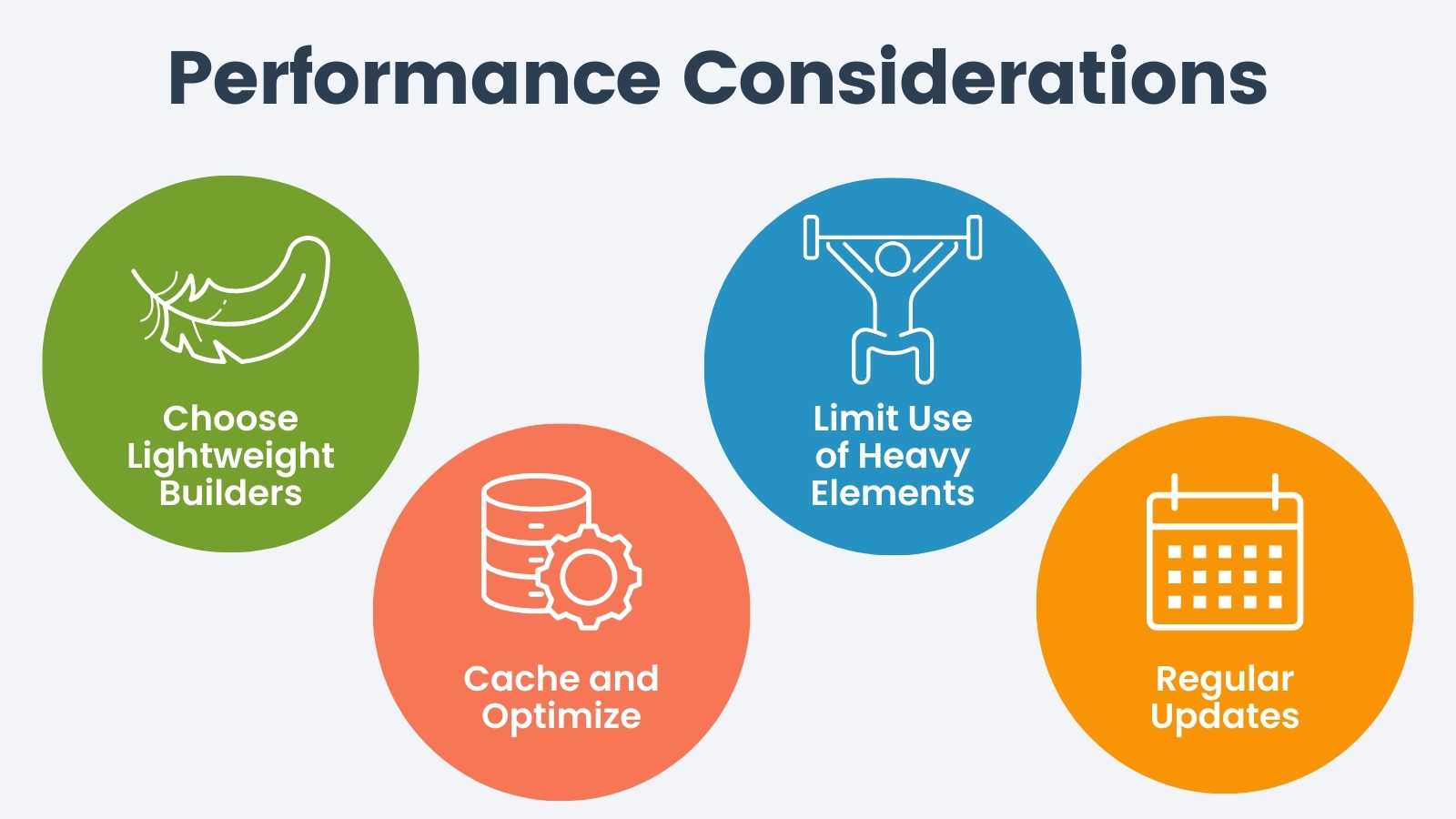
Some builders add a lot more CSS and JavaScript than others. Slow pages hurt conversions on your Levels and Checkout pages more than anywhere else on your site, so those are the pages to test first.
Go easy on sliders, carousels, animations, and oversized images. Pair your builder with a good caching setup, and keep the builder and its extensions updated, since updates often include performance fixes.
Accessibility
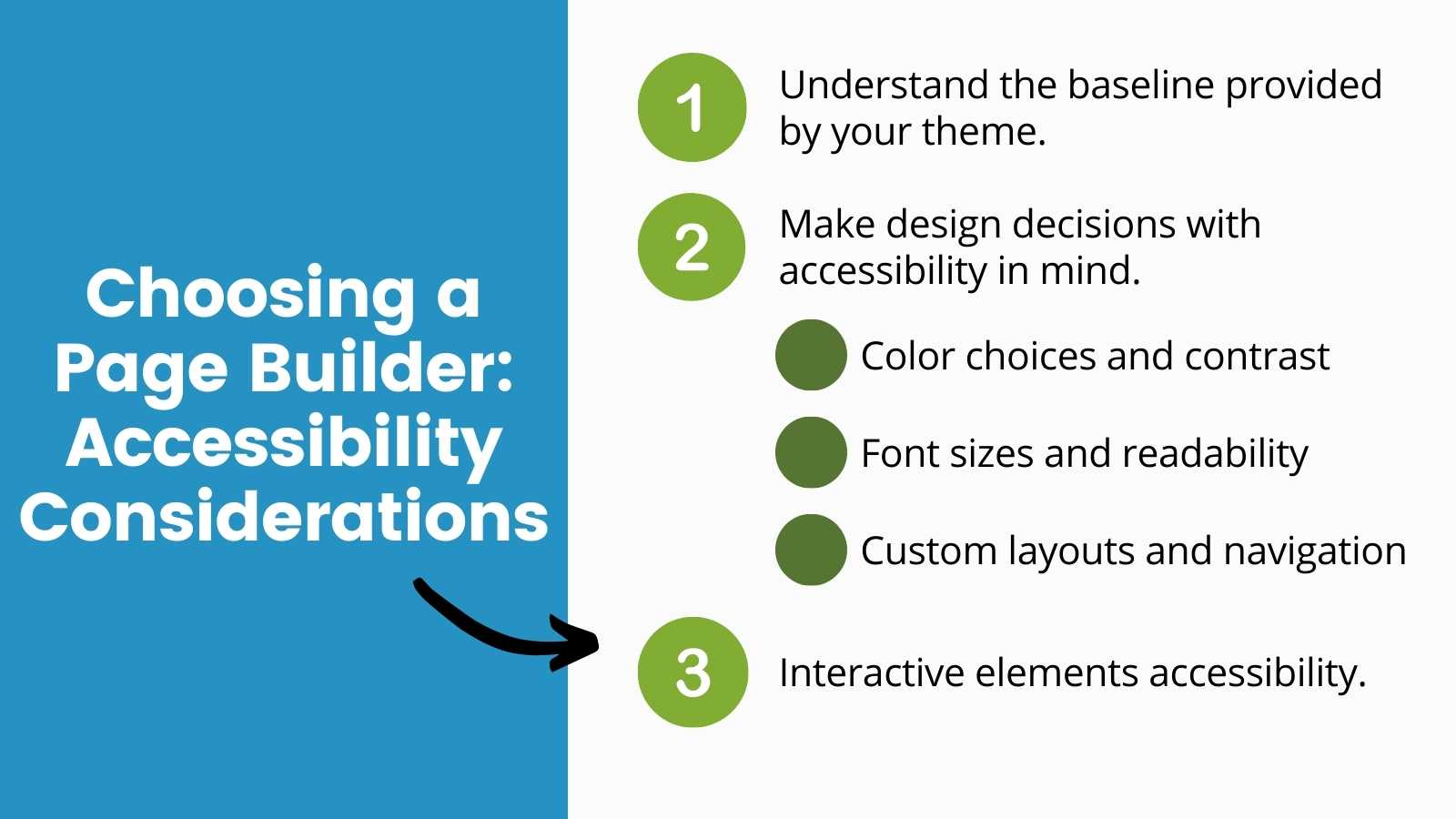
Your theme probably ships with sensible color contrast, font sizes, focus states, and semantic markup. It is easy to undo that work by accident in a visual editor. Follow these general accessibility tips:
- Keep text contrast high.
- Avoid tiny or decorative fonts.
- Keep your layout in a logical reading order.
- Make sure custom buttons and forms work with a keyboard.
Test your finished design with a tool like the WAVE Web Accessibility Evaluation Tool or the free Equalize Digital Accessibility Checker plugin, which has built-in support for popular page builders.
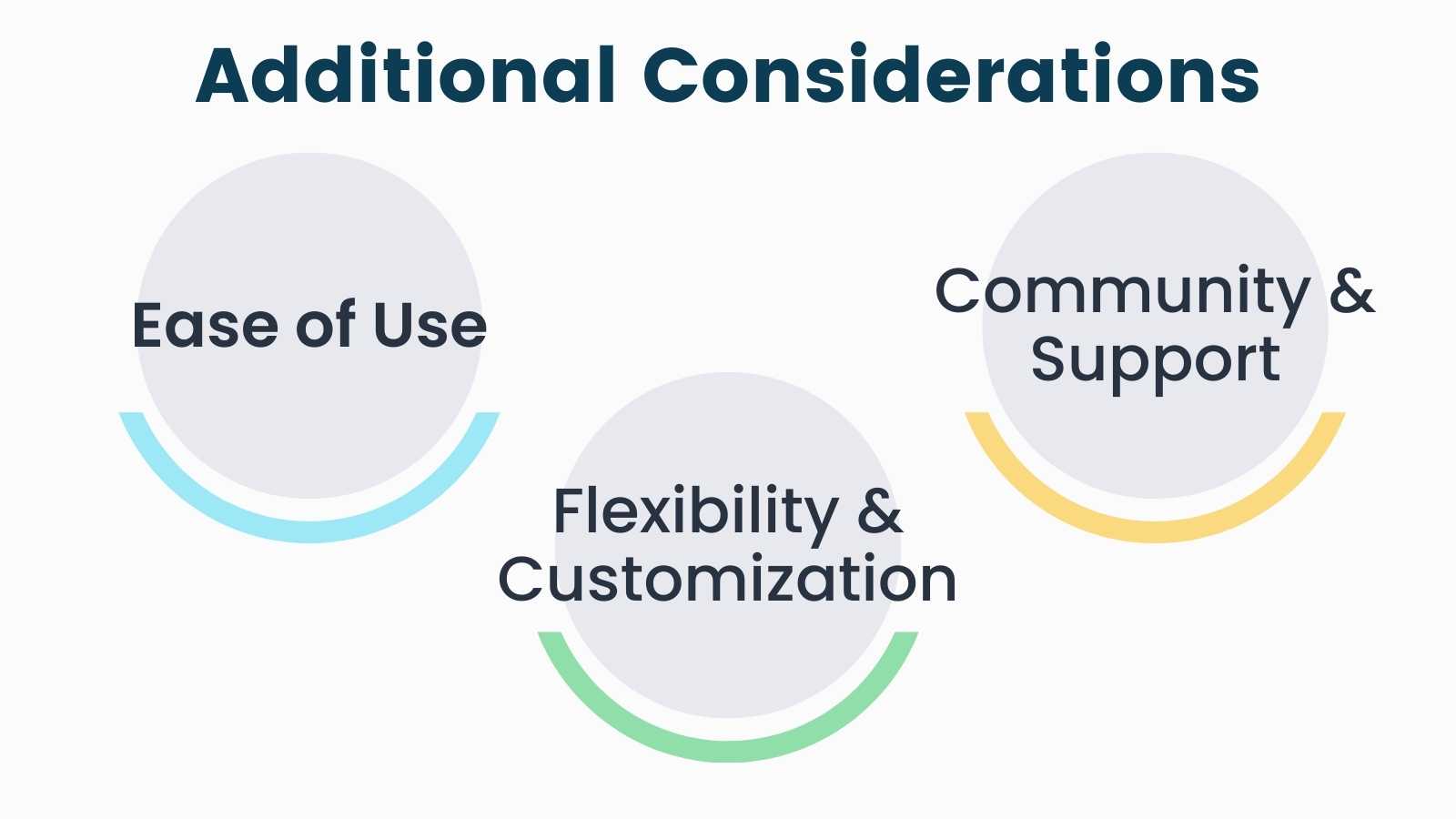
Ease of Use and Compatibility
If you are not a developer, the learning curve matters. The Block Editor and Full Site Editing are the easiest starting point because they are already part of WordPress. Look for a builder with an active community and good support, so you have somewhere to turn when you get stuck.
Also check that your builder plays well with the plugins you already run, especially any plugin that filters or restricts content. That includes PMPro.
The best builder for your membership site is usually the one you already know how to use, as long as it works with the plugins that matter. If you are starting fresh, we suggest sticking with the Block Editor and Full Site Editing until you hit a design limit you cannot solve with core tools.
Page Builders Natively Supported by PMPro
“Natively supported” means the core PMPro plugin ships with code that talks directly to the builder. For most builders, that means you can restrict individual elements to specific membership levels from inside the builder’s own interface.
Here are the builders supported in the core PMPro plugin today:
- WordPress Block Editor (Gutenberg): The default WordPress editor. PMPro includes 15 blocks, with a block for every required frontend page (Levels, Checkout, Account, and more). The Content Visibility block restricts any blocks nested inside it by membership level.
- WordPress Full Site Editing: Block themes let you edit headers, footers, and templates in the Site Editor with the same block interface. PMPro supports block themes and the Site Editor alongside the Block Editor.
- Beaver Builder: A stable, well-supported live editor. PMPro adds a PMPro tab to Beaver Builder modules, so you can show a module only to specific membership levels or only to non-members.
- Bricks Builder: Supported in the core plugin since PMPro 3.5. Open Conditions on any Bricks element, add a Paid Memberships Pro condition, and choose an audience: All Members, Specific Membership Levels, or Logged-In Users.
- Two things to know: The PMPro protected content message does not display in Bricks, and some PMPro shortcodes need a short code recipe (included in the Bricks documentation) before they render in the Bricks editor.
- Divi: A popular drag-and-drop builder with a large template library. As of PMPro 3.8, Divi 5 is fully supported. You can restrict any module, row, or section under Advanced > Conditions > PMPro > Membership Access, with an optional “no access” message. Divi 4 sites keep their section and row restrictions, and those settings carry over to Divi 5 when you re-edit the row.
- Elementor: A live editor with strong template and design tools. PMPro adds a Paid Memberships Pro section to the Advanced tab of every container and widget, where you can show or hide it for all members, specific levels, or logged-in users. PMPro also marks restricted Elementor content as dynamic, so Elementor’s element caching does not serve it to the wrong visitor. Try a demo: View the PMPro demo site or launch a free private Elementor demo.
- Oxygen Builder: A builder that appeals to more technical implementers. Add a Paid Memberships Pro Level condition to any element to show it to (or hide it from) specific levels or non-members. Conditions work in Oxygen templates too, so one change can apply across every page that uses the template.
- SiteOrigin Page Builder: A long-standing open source builder available in the WordPress.org plugin directory. SiteOrigin does not have per-element restriction controls. You restrict the whole page or post with the standard Require Membership metabox, the same way you would without a builder.
We test each builder above on a fresh WordPress install with a current default WordPress theme, the core PMPro plugin with no other Add Ons active, and the builder itself. For setup steps and the latest notes on each builder, see the Page Builders documentation.
Related: How to Create a Custom Membership Level Pricing Page: Page Builders and Pricing Table Plugins.
Common Page Builder Issues and How to Fix Them
Most support questions we see about page builders come from a small handful of situations. If a page suddenly does not look right, work through this list first.
Required Page Shortcodes Are Not Rendering
The most common issue is a PMPro page (like Membership Levels, Membership Account, or Checkout) that shows a plain shortcode in the builder preview instead of the finished page. You might also see the shortcode text on the frontend after you publish.
Two things to check:
- Save and view the page on the frontend before you decide anything is broken: Some builders do not run PMPro shortcodes inside their live editor, because the editor loads differently than the frontend does. The page usually looks correct once you publish.
- Use the right element for shortcodes: If your builder has a specific “Shortcode” or “Text” element, use that instead of dropping the shortcode into a heading or button element. See our full list of PMPro page shortcodes if you need to rebuild a page.
If you use Bricks, add the code recipe from the Bricks Builder documentation so PMPro shortcodes render inside the Bricks editor.
The Live Editor Redirects Away from Your Members-Only Page
Sometimes you open the Account page or a restricted template in the live editor and get bounced to the Membership Levels page instead. That happens because the builder is trying to preview the page, while PMPro is blocking access for anyone who is not a member.
The fix is to give your administrator account a membership level. Create a hidden, admin-only level, then assign it to your own user account. Now the builder’s preview passes PMPro’s access check and the editor loads normally.
Members-Only Content Is Not Being Protected
This one is more subtle. Some builders run their own content filters and format the page after PMPro has already applied its restrictions. When that happens, restricted content can leak through to non-members.
You have two good options:
- Filter members-only content with a higher priority, so PMPro’s restrictions run after the builder finishes.
- Redirect non-members away from members-only content entirely. This is often the simpler fix, because it skips the content-filtering issue completely.
The Live Editor Will Not Load the Checkout Page
The Membership Checkout page needs a level ID in the URL to know which level’s details to display. When you preview the page in a live editor, there is no level ID in the URL, so the page either fails to load or redirects to the Levels page.
Add a Custom Field to the Checkout page with the key pmpro_default_level and the value of any valid level ID. That gives the live editor a level to preview, and the page will load normally.
The Require Membership Metabox Is Missing
If your builder uses a full-screen live editing experience, you will not see the Require Membership metabox. That box is where you tell PMPro which levels can see the whole post or page.
Save your work in the builder, then open the same post or page in the standard WordPress editor. The metabox will be there. Set your levels, save, and switch back to the builder.
PMPro Frontend Pages Are Not Showing Up in Your Builder
Sometimes PMPro’s frontend pages (Levels, Account, Checkout, and so on) were created before you activated your builder. In that case, your builder might not treat them as editable pages at first.
To fix it:
- Navigate to Memberships > Settings > Pages and click the page you want to edit.
- Switch to your builder’s editing mode.
- Confirm the correct PMPro shortcode is present in the editor.
- Save the page.
That usually registers the page with your builder and gets the shortcode rendering again.
Using a Page Builder That Is Not on the List
If your builder is not on the list above, or your theme has built-in page-builder features, you still have a clear path forward.
For most builders, the techniques above cover you. Put the required PMPro shortcodes in your builder’s shortcode-friendly element, and use the redirect approach for content protection. That combination works with many builders we do not officially support.
If you hit a wall, contact our support team and let us know which builder you are using. We can help you find a compatibility path. When a builder is widely used and anyone can install it, we may add it to our compatibility roadmap.
Frequently Asked Questions
A page builder is a WordPress tool that lets you design page layouts visually, without editing code. You do not need one to run a membership site with PMPro. The Block Editor and Full Site Editing cover a lot of ground, but many people prefer the extra design flexibility a builder gives them.
The core plugin supports the Block Editor, Full Site Editing, Beaver Builder, Bricks Builder, Divi (including Divi 5), Elementor, Oxygen Builder, and SiteOrigin Page Builder. You can see setup notes for each on our Page Builders compatibility page.
Bricks support is built into the core PMPro plugin, starting with version 3.5. Once both plugins are active, you can add a Paid Memberships Pro condition to any Bricks element and choose All Members, Specific Membership Levels, or Logged-In Users.
It can, especially on the Checkout and Levels pages where every extra script matters. Pick a builder known for lightweight output, go easy on animations and sliders, and pair your builder with a good caching setup.
Some builders do not run PMPro shortcodes in the live editor. Save your changes and view the page on the frontend before you assume it is broken. If it still looks wrong, make sure the shortcode is inside your builder’s shortcode or text element, not a heading or button.
It depends on the builder. Bricks and Oxygen add a PMPro condition to the element. Elementor uses the Paid Memberships Pro section on the Advanced tab. Open Advanced > Conditions on the module, row, or section when using Divi 5. Beaver Builder uses the PMPro tab on the module. The Block Editor, wrap the content in a Content Visibility block. SiteOrigin Page Builder does not have per-element controls, so use the Require Membership metabox to restrict the whole page.
Reach out to our support team. Many builders that are not on the compatibility list still work fine with PMPro shortcodes and the redirect approach to content protection.
Where to Go From Here
PMPro works with the builder you already know. Follow the rules above for the pages that carry PMPro shortcodes (Levels, Checkout, and Account), give your admin account a level so live editors do not bounce you, and use your builder’s restriction controls to protect individual sections.
If you have not picked a builder yet, start with the Block Editor and Full Site Editing. If you already have one, open the Page Builders documentation and follow the setup notes for your builder.

Free Download: The AI-Powered Membership Site Blueprint
Download the free guide: Learn how to plan, build, and grow a membership site using AI as your strategic partner: from buyer persona to launch and beyond.